

Flip GIF Images Online
Mirror your GIF photos horizontally or vertically instantly, right in your browser.
Powered by groupdocs.com and groupdocs.cloud.
By uploading your files or using our service you agree with our Terms of Service and Privacy Policy.

About the Flip Tool
Flip your GIF images online in seconds - mirror them horizontally or vertically to fix orientation or create a mirrored effect. Our free tool works directly with GIF files and keeps full quality.
Upload your GIF image, pick a flip direction, and preview it instantly. Add more GIF files to apply the same flip across your whole batch, then download every result together.
All GIF processing happens locally in your browser, so your files never leave your device. It is completely free, needs no signup, and works on any platform.
GIF Flip Tool in Action
Turn an upside-down or mirrored GIF photo the right way round in one click, with no loss of quality.
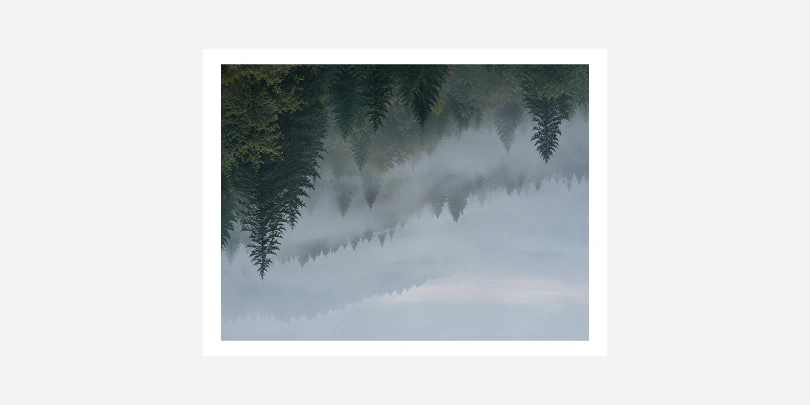 Before
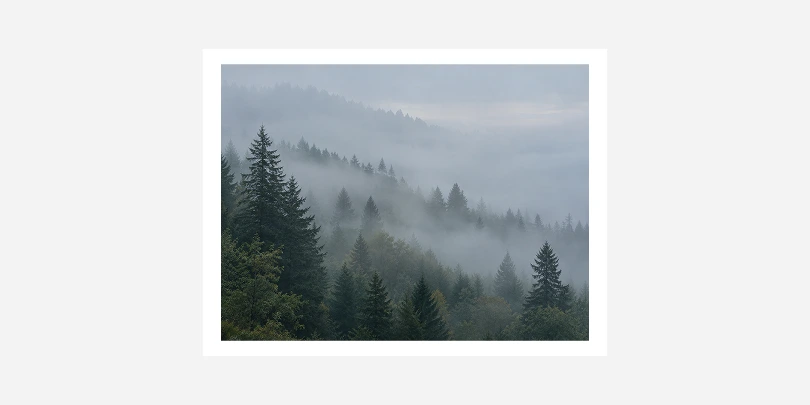 After
After
Flip App Features
- Completely free to use, with no signup, watermarks, or hidden limits.
- Flip up to 30 images at once and download every result in a single batch.
- Everything happens right in your browser when you flip an image - your photos are never uploaded to a server.
- Works with PNG, JPG, GIF, and WebP images, so you can flip almost any photo format.
- No installation needed - flip images instantly from any device with a modern browser.
- Animated GIFs stay animated - every frame is processed, with its timing and looping kept.
Graphical Interchange Format File
GIF (Graphical Interchange Format) stores bitmap images with lossless compression, supporting both static and animated graphics. Widely used for simple animations, memes, and icons on the web, GIFs offer transparency and a palette of up to 256 colors. Their small file size and broad browser compatibility make them ideal for lightweight, looping visuals without audio.
How to Flip an Image Online
Get a Better Flip Result
Do
- Check the preview before downloading.
- Flip horizontally to fix a mirrored selfie.
- Keep a copy of the original GIF file.
Avoid
- Flipping images with text: it will read backwards.
- Flipping a sideways photo: use rotate instead.
- Starting from a low-quality copy: use the original file.
Questions & Answers
-
How long does it take to flip a GIF image?Flipping a GIF image takes just a second or two in most cases, since everything runs locally in your browser's JavaScript engine rather than being sent to a server. Larger files or a full batch of images may take a little longer, but you'll see progress update live as each one finishes.
-
Is it safe to flip my photos here?Yes. Your images are processed entirely on your own device using your browser's built-in canvas and Web Worker features, and they are never uploaded to a server or stored anywhere online. Once you close or refresh the page, nothing about your photos remains on our side.
-
What browser should I use?Any modern browser works well, including Chrome, Firefox, Edge, and Safari on both desktop and mobile devices. The tool relies only on standard, widely supported browser features, so there is nothing extra to install, enable, or configure.
-
Can I flip a GIF image both horizontally and vertically at once?Yes, you can enable both flip horizontal and flip vertical at the same time, which produces the same result as rotating a GIF image 180 degrees. The preview updates instantly as you toggle each option, so you can check the result before downloading anything.
-
Will flipping a GIF image reduce its quality?No. Flipping only rearranges existing pixels - it does not resample, recompress, or discard any image data in the process. The output keeps the same dimensions, format, and quality as your original file, just mirrored.
Select a language
- العربية
- Български
- Català
- Čeština
- Dansk
- Deutsch
- Ελληνικά
-
English
- Español
- Eesti
- فارسی
- Suomi
- Français
- עברית
- हिन्दी
- Hrvatski
- Magyar
- Հայերեն
- Indonesia
- Italiano
- 日本語
- Ქართული
- Қазақ Тілі
- 한국어
- Lietuvių
- Latviešu
- Melayu
- Nederlands
- Polski
- Português
- Română
- Русский
- Slovenčina
- Slovenščina
- Svenska
- ไทย
- Türkçe
- Українська
- Tiếng Việt
- 中文(简体)
- 中文(繁體)